How to connect to AWS
On this page, you will find a step-by-step guide on how to connect your AWS API Gateway to Boomi's API Control Plane.
Prerequisites
To proceed, you will need the following:
-
A running instance of Boomi's API Control Plane.
-
Access to the Amazon API Gateway Service with at least one API deployed in a stage
-
Docker to utilize the image of our agent, which acts as an intermediary.
Add an Environment
-
Navigate to Environments in the menu.
-
Click on the Register Gateway button.
-
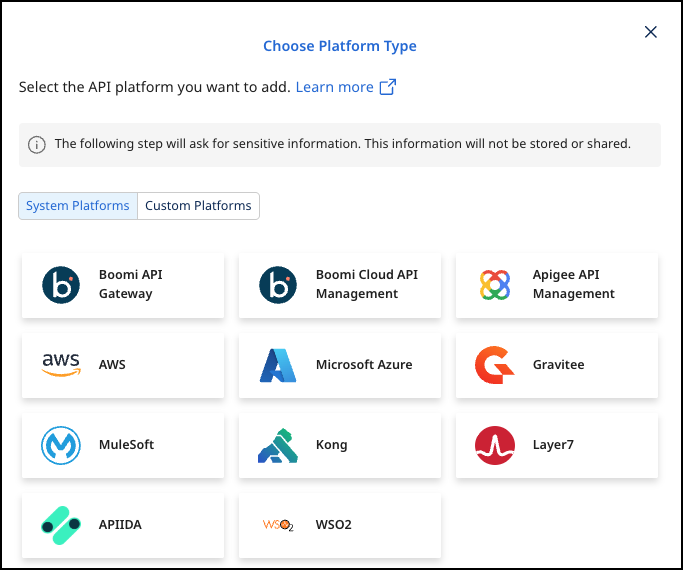
Select AWS.
Gateway Configuration
You have two options to grant your agent access to your AWS API Gateway, depending on whether you plan to host the agent inside AWS or elsewhere.
Agents running outside AWS
This is the default, where you run the agent container outside of AWS, e.g. inside your local network or within another cloud provider. For the agent to access the AWS API Gateway, you must provide credentials in form of Access Key and Secret Access Key.
Agents running inside AWS
For agents running within one of the AWS container services (e.g. ECS or EKS) and pointing to AWS API Gateway you can choose to 'Use AWS Internal Access' instead of providing explicit credentials. This eliminates the storing or transmission of gateway credentials by the agent - Hence tighter security.
In this case you must configure a Task IAM Role for your container in AWS which has the necessary permissions to access the API Gateway.
Here is the documentation from Amazon describing the process:
Amazon ECS task IAM role - Amazon Elastic Container Service
-
Use AWS Internal Access:Enable this if you intend to run your agent container inside AWS and want to use a Task IAM Role instead of providing accessKey and secretAccessKey. -
accessKey/secretAccessKey:Id and secret access key of an AWS long-term access key for programmatic access. -
region:The region in which your AWS API Gateway is hosted. -
stage:The stage to which your APIs are deployed in AWS.
See our Q&A below if you want to learn more about how to get these values.
Currently, each AWS agent is specific to one region and one stage. If you want to manage multiple stages or regions, you will require an agent instance for each combination.
- Add the Technical Name, Display Name and URL.
- Select Connect to Gateway. The Docker file is created.
- Select Download and Next.
- Run the command in the same directory of the downloaded file and select Done.
Check the Agent's Status
-
In API Control Plane, select Environments.
-
Click on the tile or the entry in the table to get more detailed information about the status of the connection. This can be very useful in case of an error.
You can now interact with your Gateways through Boomi's API Control Plane.
It is easy to add more agents Repeat this guide or that of another gateway and simply add the agents to the existing Docker compose file.
Q&A
How do I get my accessKey and secretAccessKey?
See this AWS link to learn how to get your access keys: Understanding and getting your AWS credentials - AWS General Reference
Where can I find the region assigned to my API in AWS?
Go to the API Overview in the AWS API Gateway Service
-
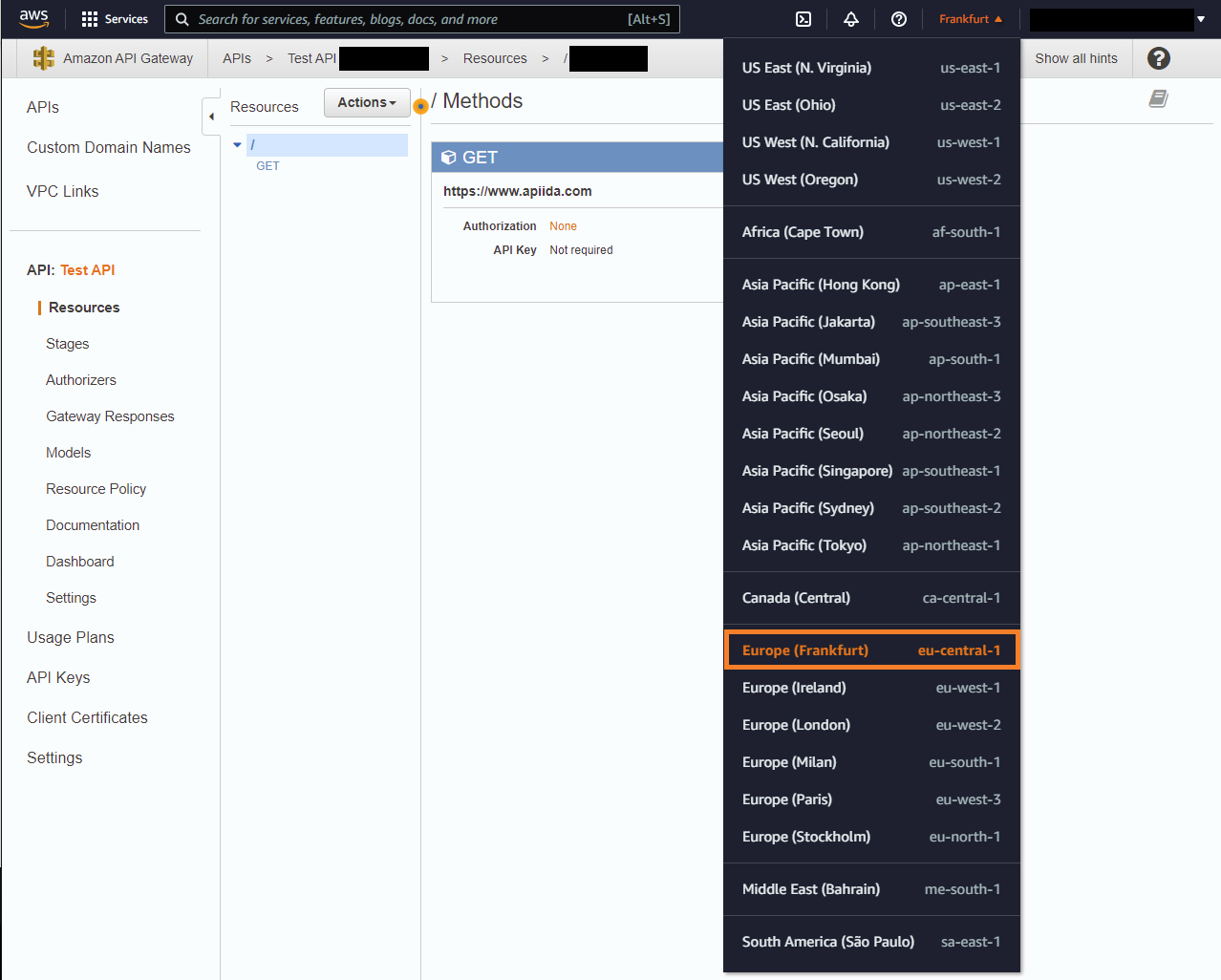
The region identifier of your API can be found in the region tab (see screenshot)
-
The region identifier is also part of your overview URL
https://{region-identifier}.console.aws...
Where can I find the stage(s) in which my API is deployed?
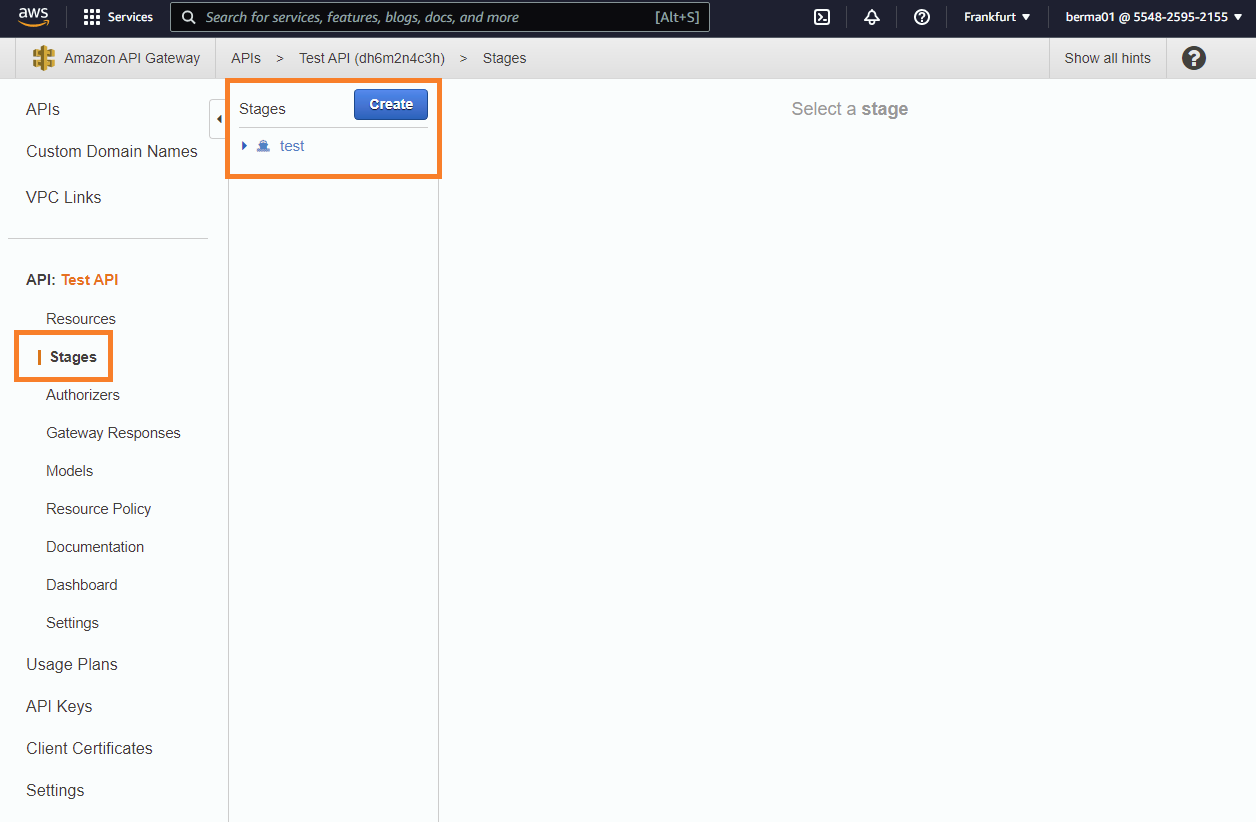
Go to the API Overview and choose Stages (from the left menu page).
- The stages in which your API is deployed will be displayed in the second column